When is this required?
This guide is only required if your Google Workspace administrators have blocked external apps without a review. Most organizations can connect to Bruce without any additional configuration.
How to verify if this is needed:
- Go to app.bruce.sh/settings
- Try to connect your inbox
- If you see an error banner stating that scopes were not granted, your Google administrator needs to follow the steps below
Step-by-Step Instructions
Open Google Admin Console
Log in as an administrator at admin.google.com, then navigate to the App Access Control page:
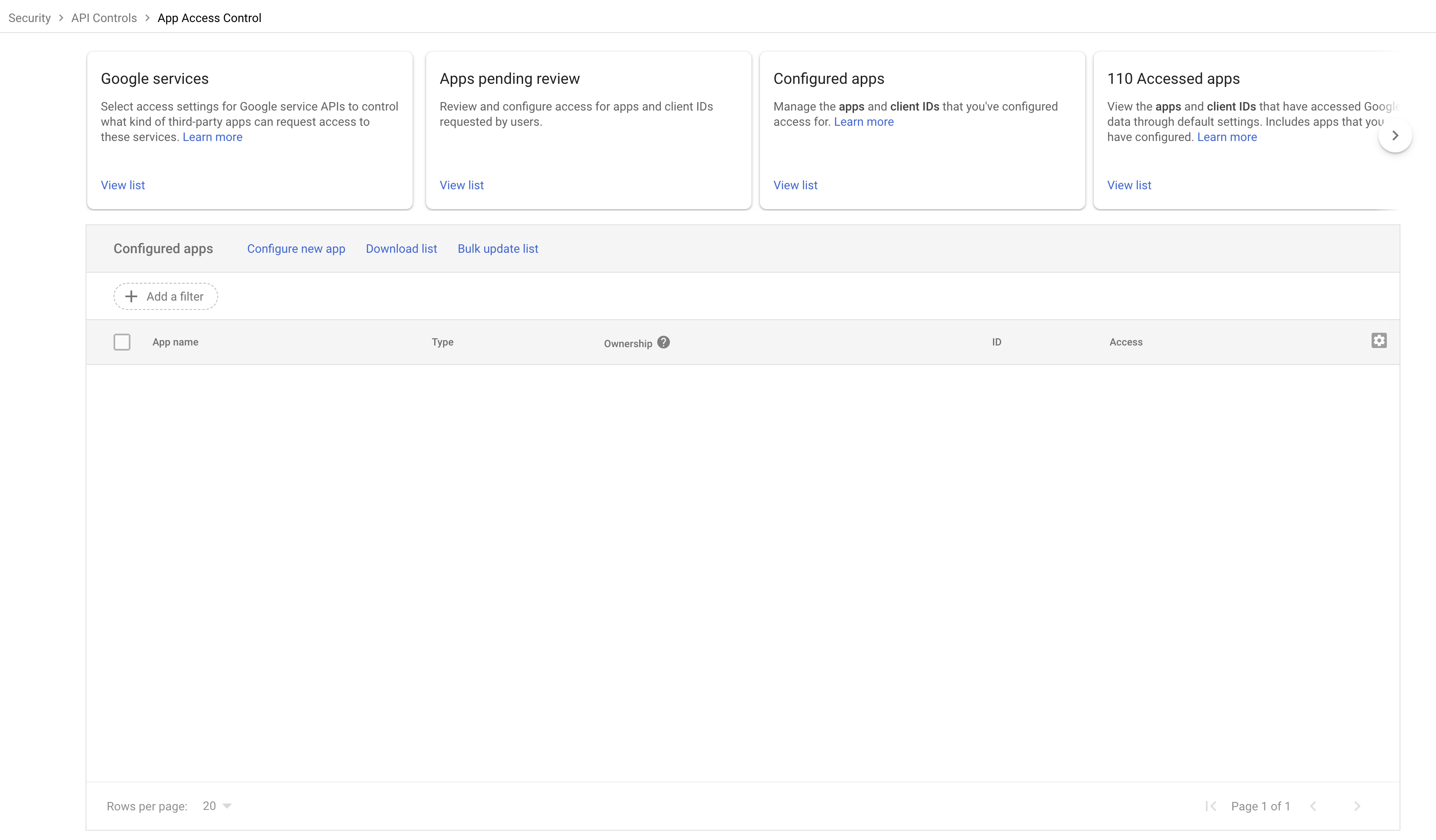
Configure New App
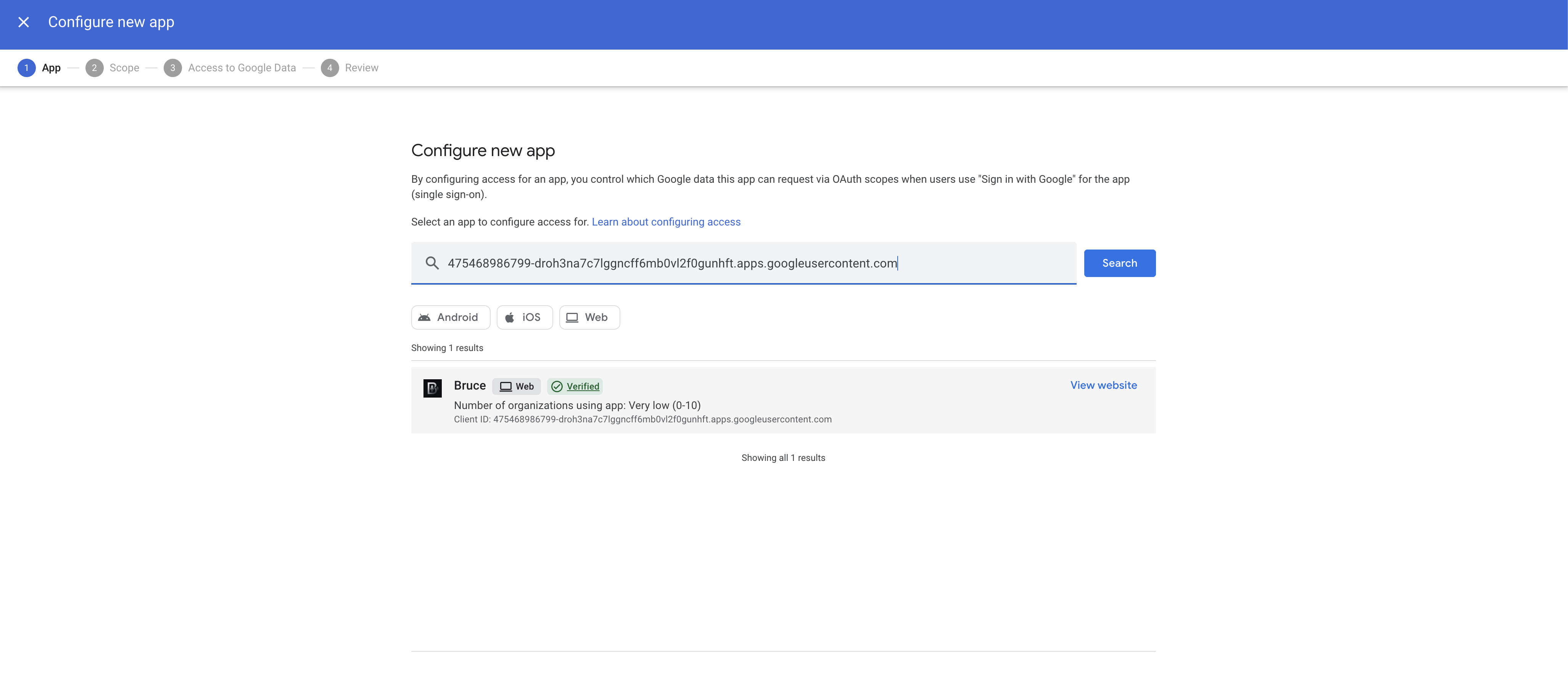
Click Configure new app. A modal will appear with a search bar. Search for Bruce using its Google Client ID:
Select the Bruce app from the search results.
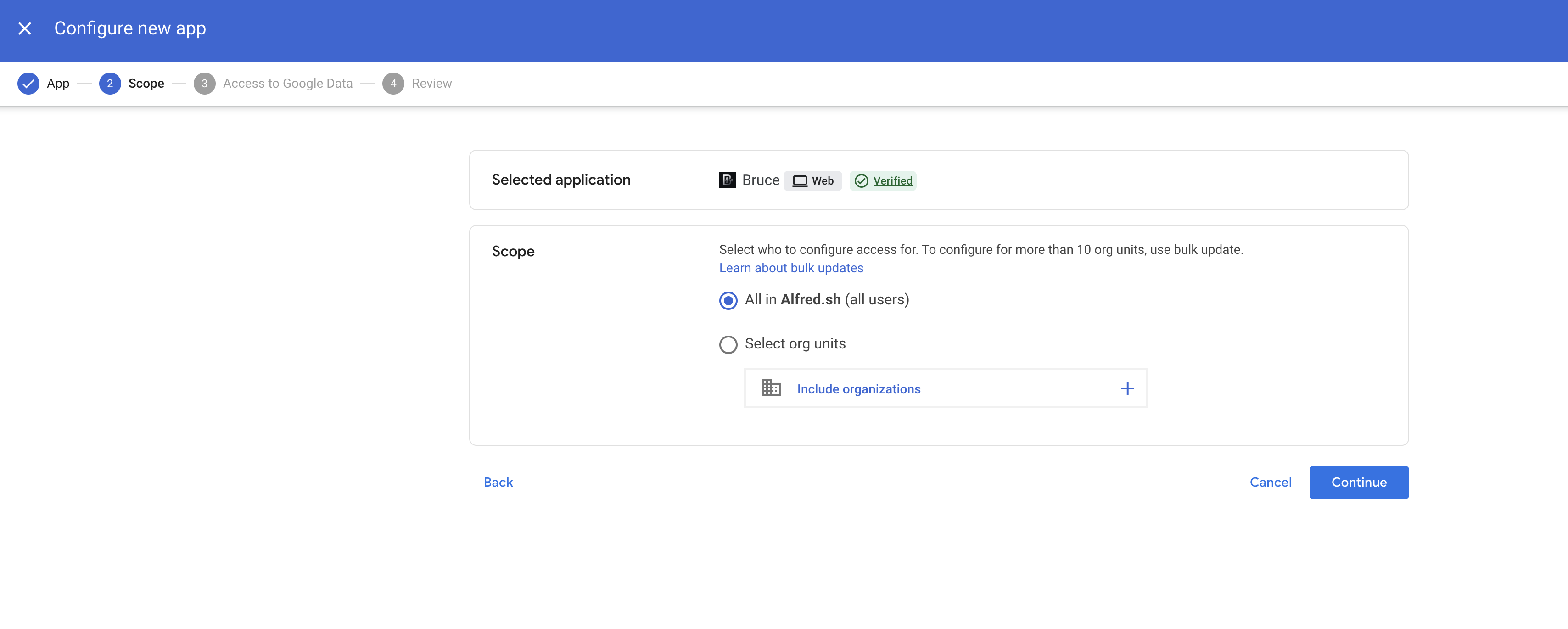
Select Organizational Units
In Step 2 of the modal, select the organizational units (OUs) or domains that should have access to Bruce. Once you've made your selection, click Continue.
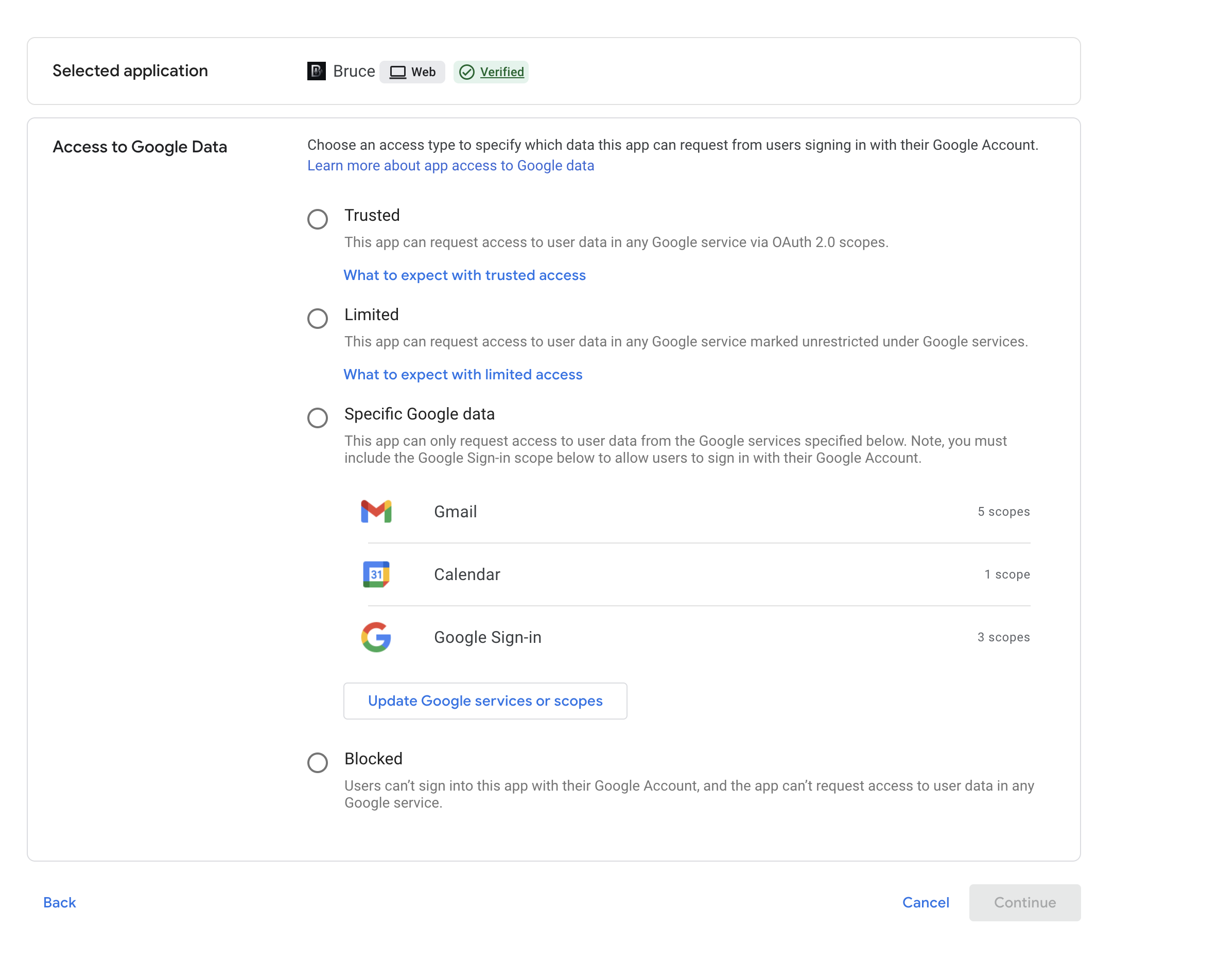
Set Access to Google Data
In Step 3, you'll configure how Bruce can access Google data. Select the Trusted option to allow Bruce full access to the requested scopes, then click Continue.
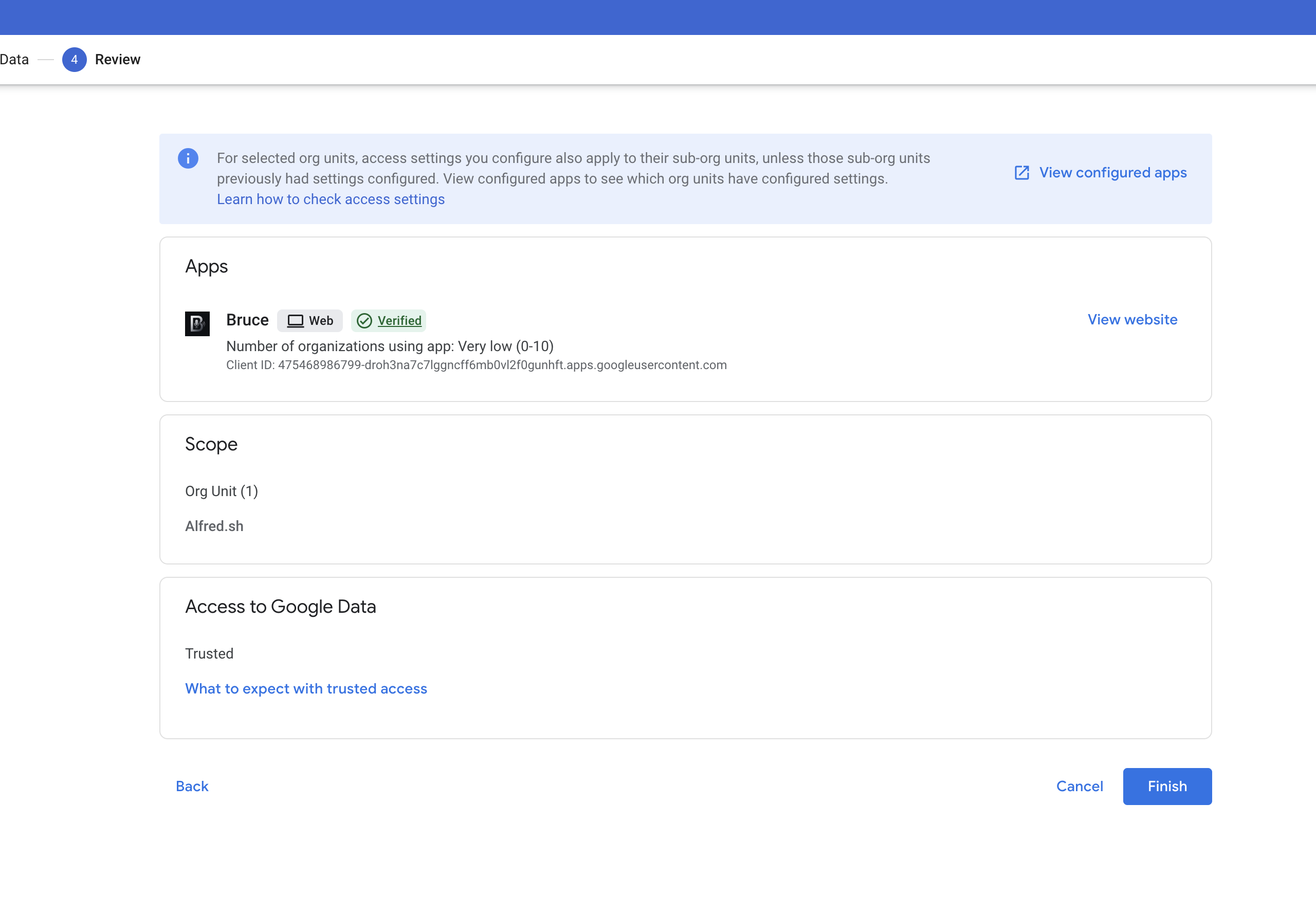
Review and Finish
Review your configuration in Step 4 of the modal. Once everything looks correct, click Finish to complete the setup.
Next Steps
After completing these steps, users in the selected organizational units can now connect their Google Workspace accounts to Bruce. Have them return to app.bruce.sh/settings and try connecting their inbox again.
Need Help?
If you encounter any issues during setup, our team is here to help.
Contact Support