Only connecting a few reps?
This guide sets Bruce up for your whole organization at once. If just a handful of people will use Bruce, they don't need admin involvement — each person can connect their own inbox in a couple of clicks at app.bruce.sh/tools. Use this organization-level setup when you want many mailboxes connected without each person signing in.
Before you begin
This is a one-time setup, done once for your entire organization. After you authorize Bruce, your team's mailboxes are connected automatically — no need for each employee to manually go to Bruce to connect their emails. It takes about 5–10 minutes.
You will need:
- A Google Workspace super administrator account (a regular admin can't access the Domain-wide delegation page).
- Your organization on Google Workspace. If your email runs on Microsoft 365 / Outlook, this guide doesn't apply — contact us for the Microsoft setup.
- The list of mailboxes you want Bruce to work with (you'll send these in Step 4).
Step-by-Step Instructions
Open Domain-wide Delegation and add a client
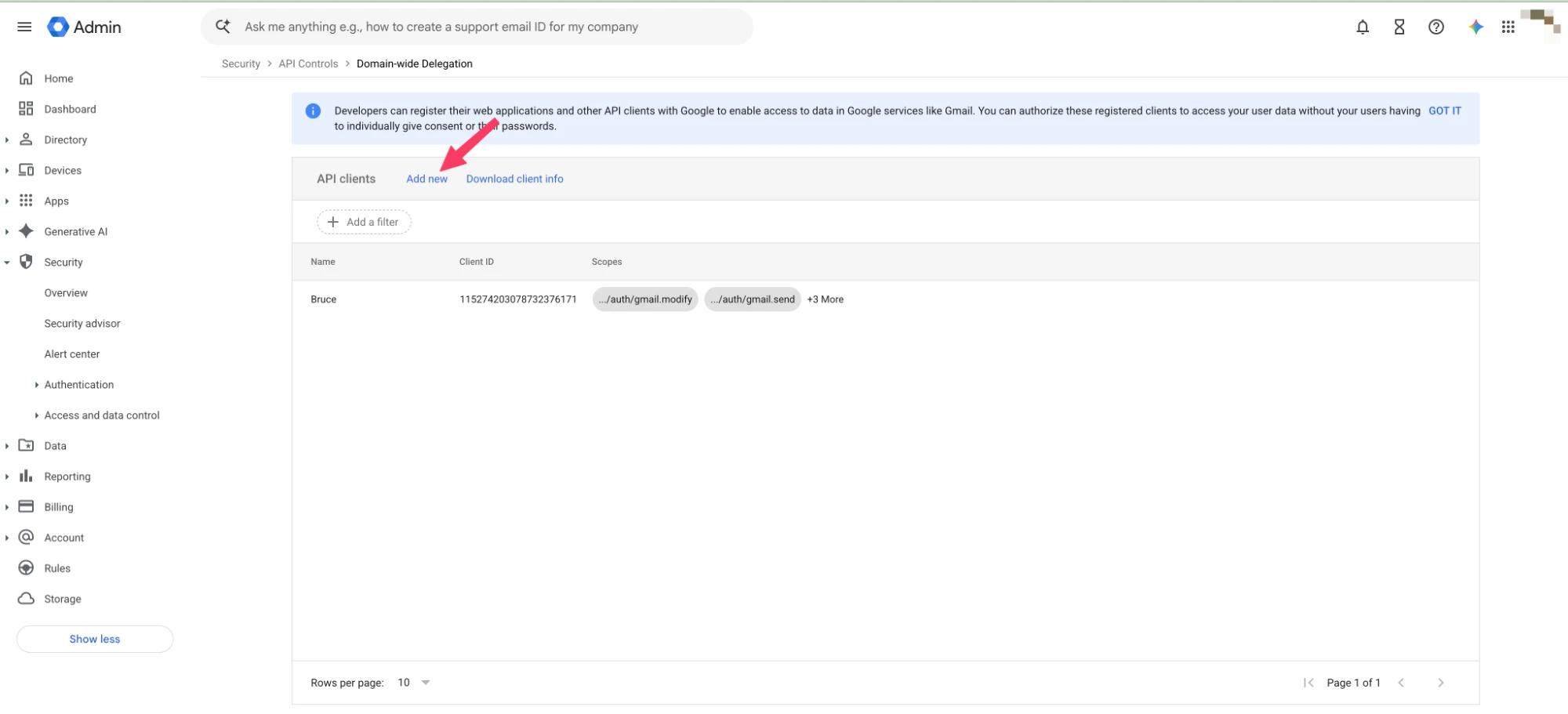
Sign in as a super administrator at admin.google.com, then open the Domain-wide Delegation page directly:
(Or navigate there manually: Security → Access and data control → API controls → Domain-wide delegation.)
On the API clients page, click Add new.
Enter Bruce's Client ID and scopes
A dialog titled Add a new client ID appears:
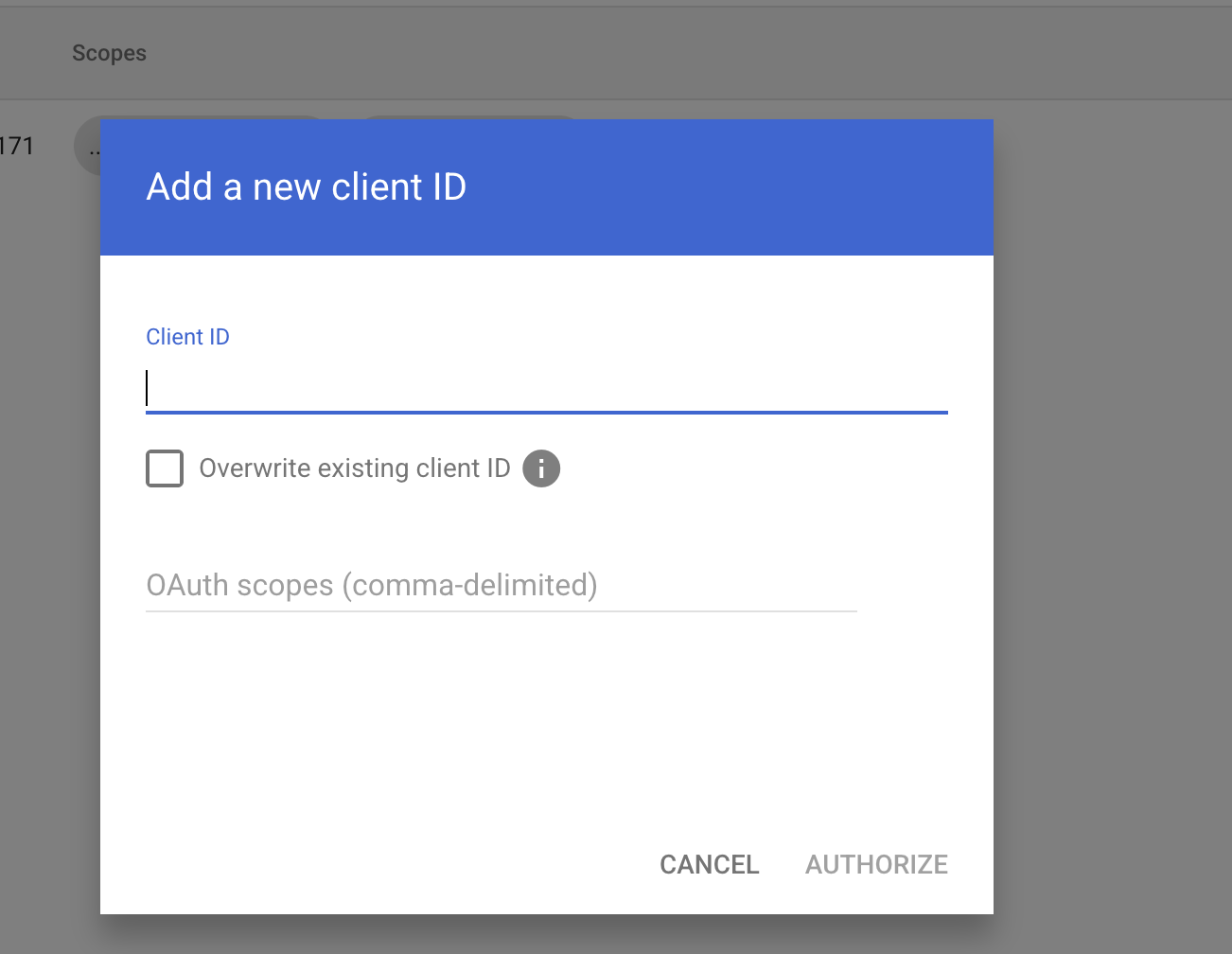
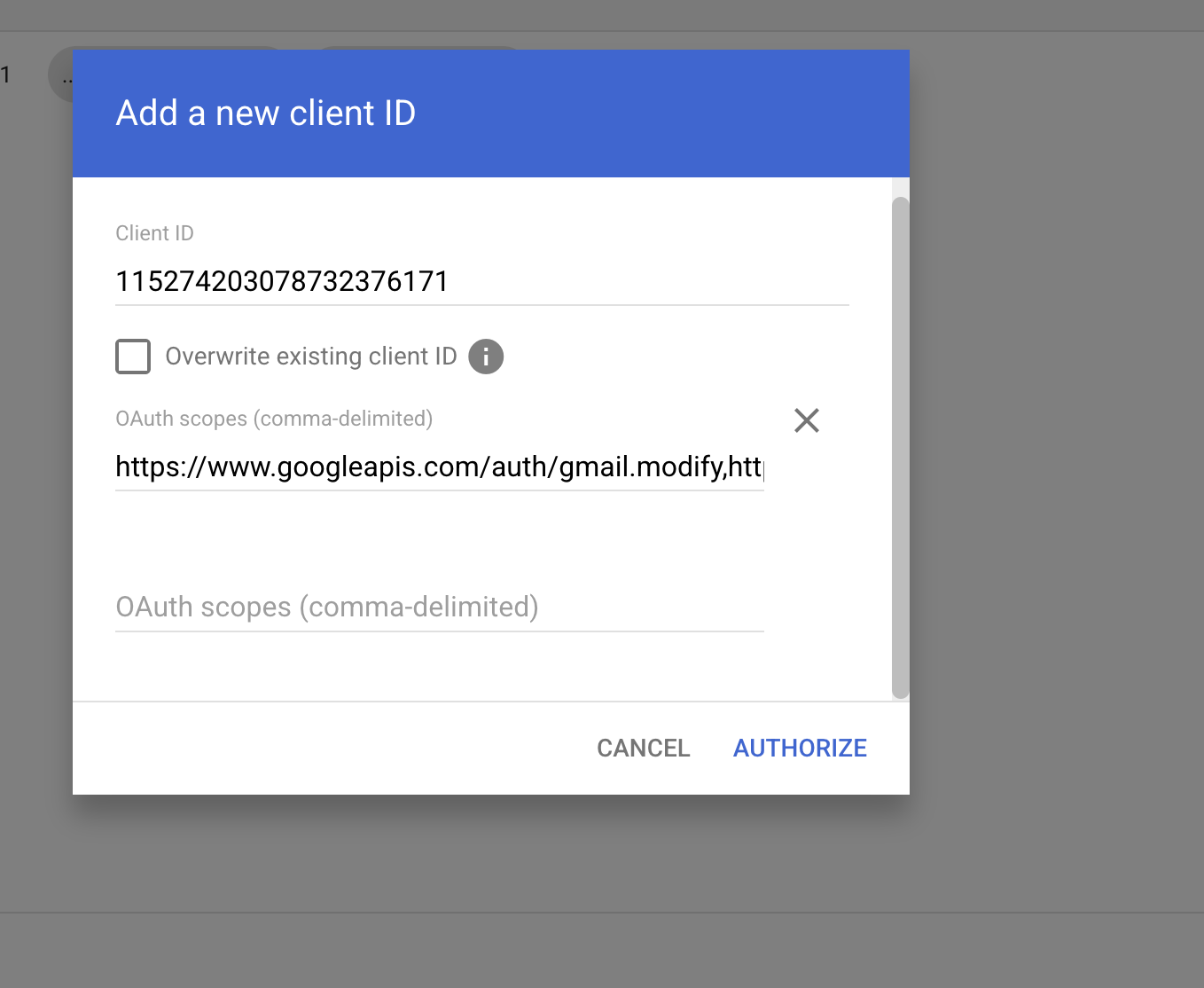
In the Client ID field, paste Bruce's identifier exactly as shown:
In the OAuth scopes (comma-delimited) field, paste the following list exactly. These let Bruce read and send mail, manage labels and settings, and read calendars on the mailboxes you choose:
Your dialog should now look like this:
Authorize
Click Authorize. There's no confirmation step — that's it on the Google side, and the change usually takes effect within a few minutes.
Send us the mailbox list
Finally, tell us which mailboxes Bruce should work with. Prepare a CSV file with one email address per row (a header row labeled email is welcome but optional):
email
jane@yourcompany.com
john@yourcompany.com
sales@yourcompany.com
Email the CSV to support@egi.sh and our team will enable those mailboxes in Bruce.
You stay in control.
Bruce only works with the mailboxes you send us — not your entire domain. You can revoke access at any time by removing Bruce's Client ID from the same Domain-wide delegation page, and we can disable specific mailboxes on request.
Next Steps
Once you've authorized Bruce and sent the mailbox list, there's nothing more for your team to do — the connected mailboxes will start working in Bruce automatically. We'll confirm once they're live.
Need Help?
If you run into any issues during setup, our team is here to help.
Contact Support