Before you begin
This is a quick, self-serve setup you do once. It takes about two minutes, and you can revoke access at any time. You'll authorize the connection through Intuit's standard OAuth screen — Bruce never sees your QuickBooks password.
You will need:
- Access to your Bruce workspace at app.bruce.sh.
- A QuickBooks Online account, signed in with a user that has permission to authorize connected apps for your company.
Step-by-Step Instructions
Open Bruce
Go to app.bruce.sh and sign in to your workspace.
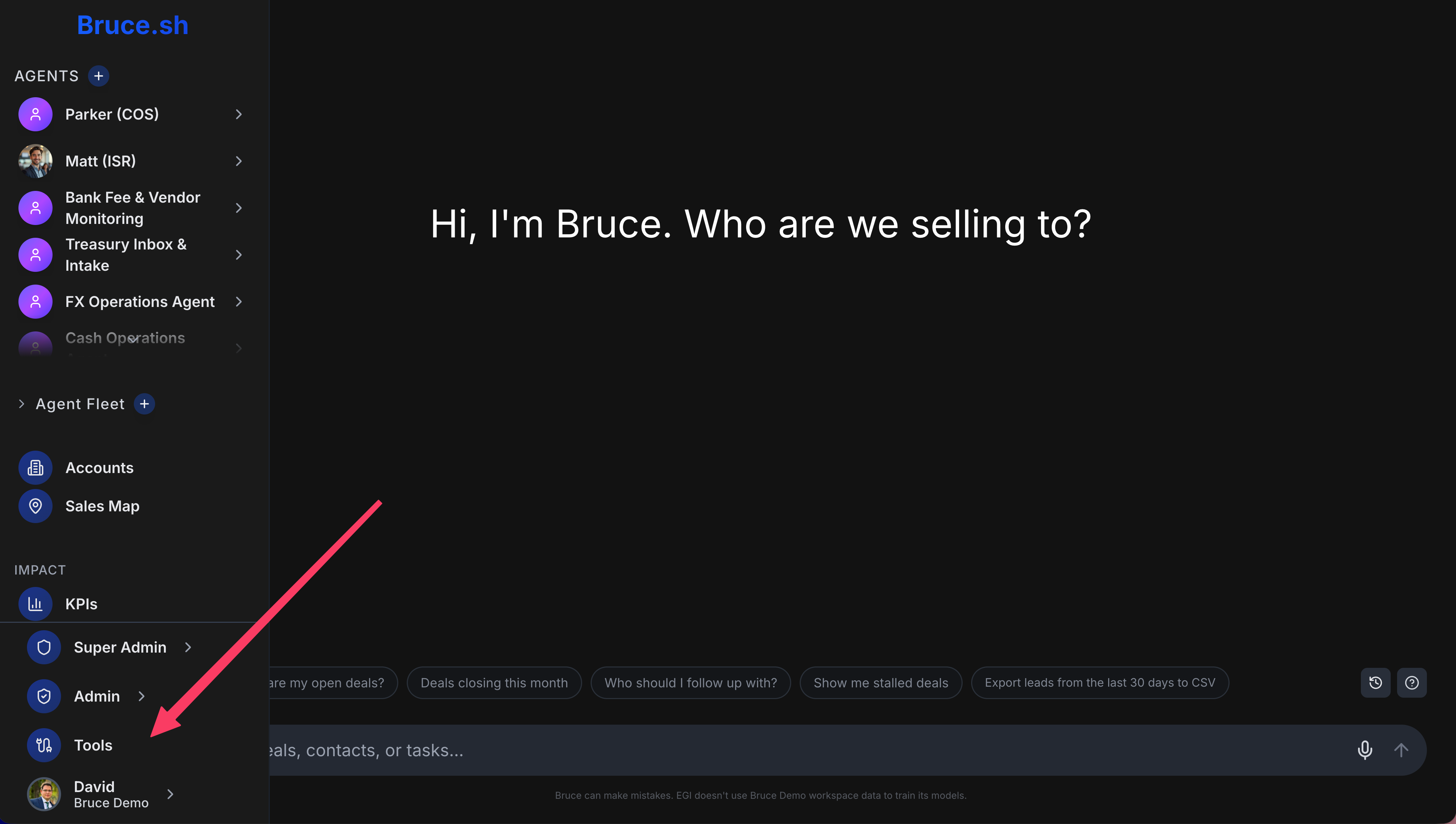
Open the Tools page
Hover over the left sidebar to expand it, then click Tools near the bottom.
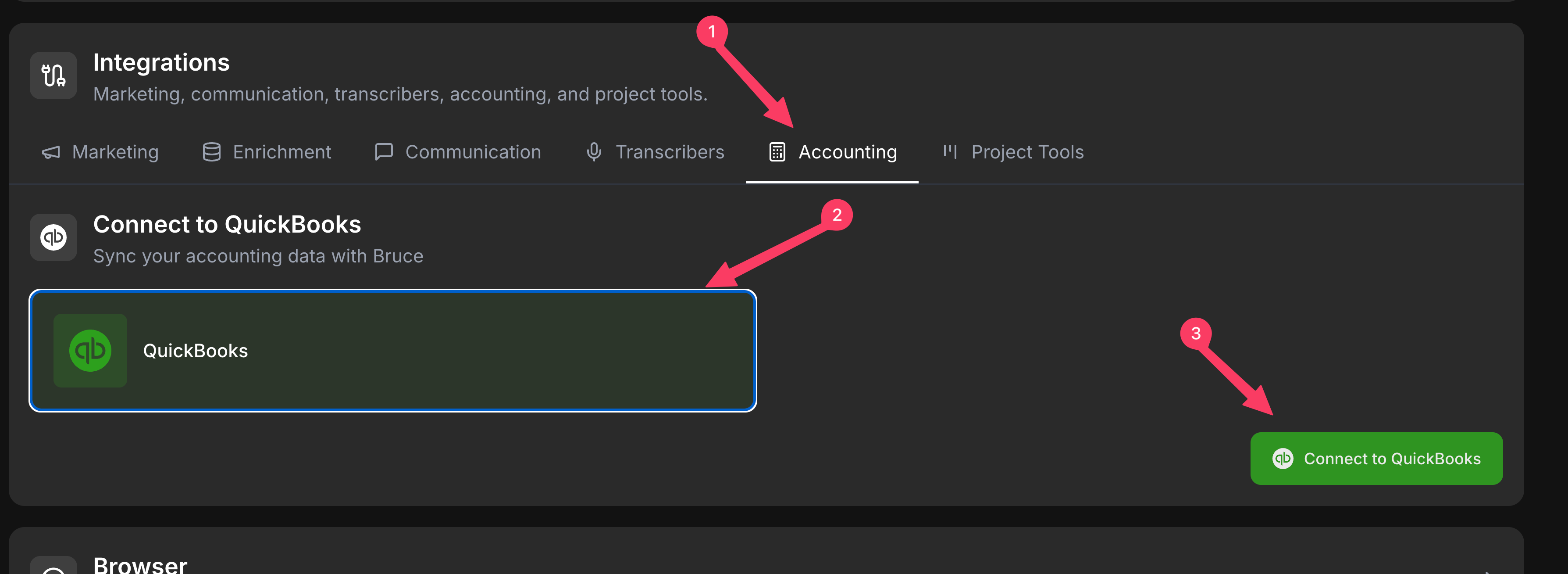
Connect QuickBooks under Integrations
On the Tools page, scroll down to the Integrations section. Open the Accounting tab, select QuickBooks, and click Connect to QuickBooks.
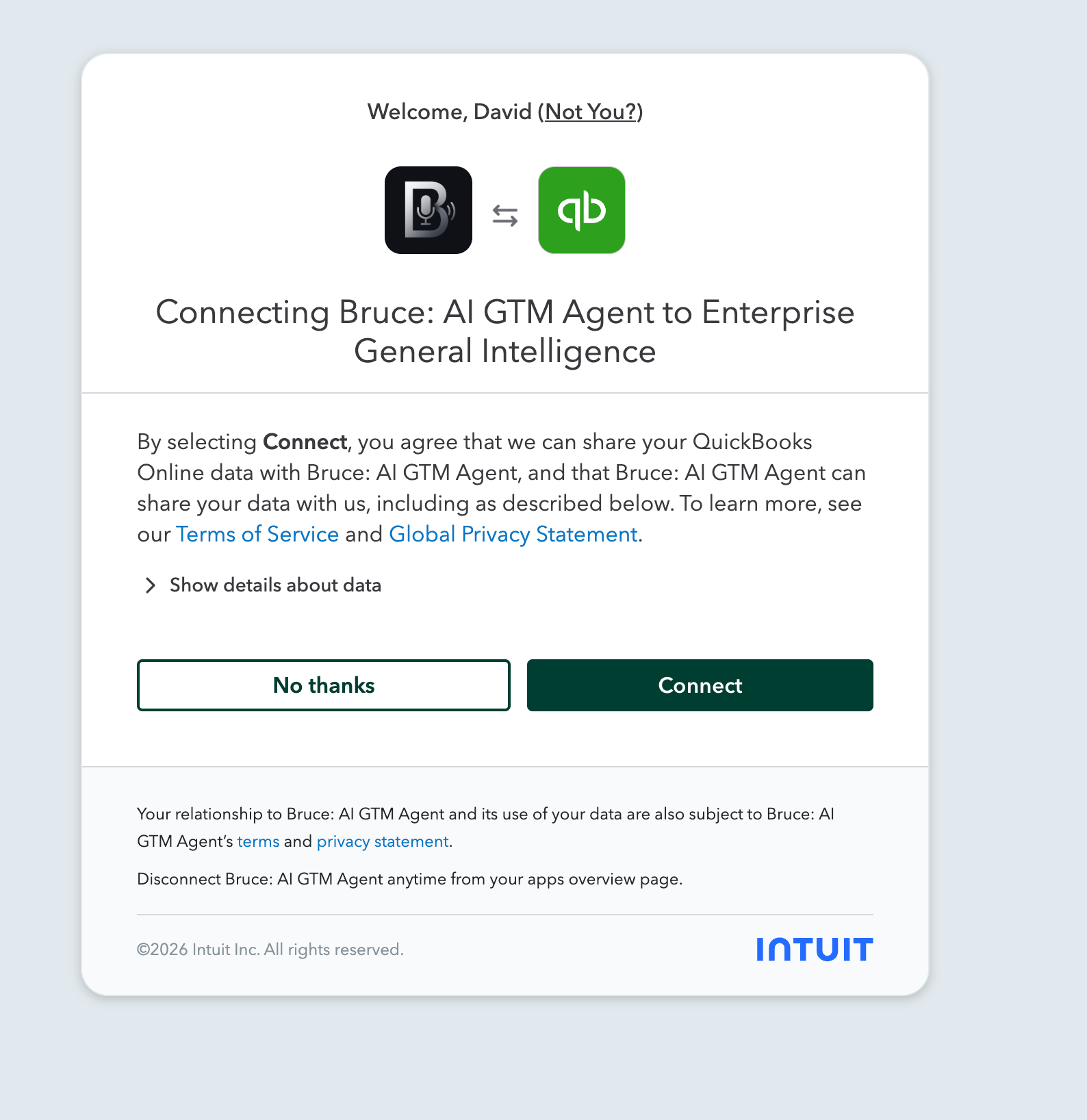
Authorize on the QuickBooks screen
You'll be redirected to Intuit's secure authorization page. Review the access, then click Connect to grant Bruce access to your QuickBooks Online data.
You're connected
Intuit sends you back to Bruce, where QuickBooks now shows as connected. That's it — you can start asking Bruce about your QuickBooks data right away.
What you can ask Bruce
With QuickBooks connected, just ask in plain language. A few examples to get started:
You stay in control.
The connection uses Intuit's OAuth — Bruce never receives your QuickBooks password. You can disconnect Bruce at any time from your QuickBooks Apps overview page, or by removing the integration from the Tools page in Bruce.
Bruce works best with your full stack connected.
QuickBooks pairs naturally with your CRM and mailboxes — so Bruce can reason across the deal and the dollars in one place. Connect the rest of your tools from the same Tools page.
Need Help?
If the connection doesn't complete or QuickBooks doesn't show as connected, our team is here to help.
Contact Support